‏إظهار الرسائل ذات التسميات galaxy s2 tutorial. إظهار كافة الرسائل

الأربعاء، 30 أكتوبر 2013

How to Root AT&T Samsung Galaxy Mega SGH-I527, Canadian SGH-I527M and Others

How to Root AT&T Samsung Galaxy Mega SGH-I527, Canadian SGH-I527M and Others

Root-AT&T-Galaxy-Mega
Android has billions of users and this big community fall into different groups according to their Approach to their device. First, there comes the biggest group that buys a good device, tries apps from the Play Store and enjoys it as it comes to them from the manufacturer. They are either unfamiliar with the existence of a term like “rooting”, or if they know, they are not willing to get into such things. Then there is another group that is passionate about the device they have and want to make the most out of it. Such people can’t live a day without root access on their device.
Rooting helps a lot in improving the performance of an Android phone or tablet and customizing it the way we want. If you own the AT&T Galaxy Mega SGH-I527, and want to take advantage of  root access on your mega phone by installing apps that require root and cleaning bloat apps, we have discovered a working and very useful rooting tool for you. The Kingo One-click Root Tool is an easy to use and risk-free utility that works on a Windows PC.
It is a one-click root tool in the true sense of the word. Let’s see how you can root your Galaxy Mega SGH-I527 , SGH-I527M and other variants of the device using Kingo Root Tool.
Read Also: 

 Preparations:

  • Download the latest Kingo One-click Root Tool: Click Here
  • Install Samsung USB Drivers on your computer: Download
  • Enable USB Debugging on your Galaxy Mega. You can do it from Settings> More> Developer Options. If this option is unavailable on your phone, use This Guide to make itDeveloper Options visible.

Using Kingo Root Tool:

There is nothing geeky about this root tool because it is one of the easiest rooting utility for Android I have ever seen. Just install it on your PC and connect your phone using USB cable.
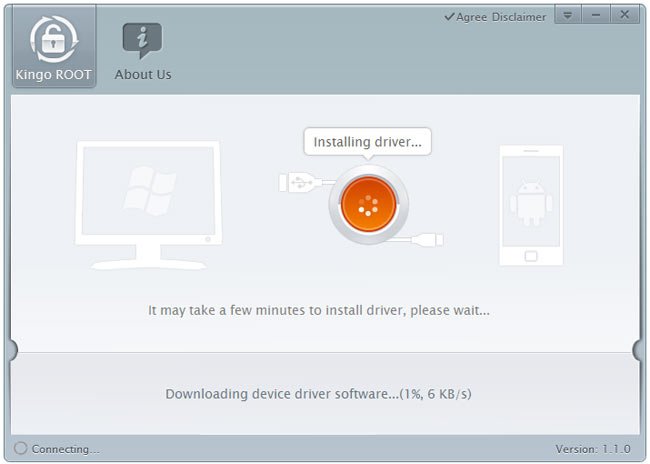
Kingo-One-click-Root-Tool
The tool will check for device drivers on your computer and install if it does not find it. When the drivers are installed, you will see ROOT button. Just click it and wait till the tool runs rooting scripts, install SuperSU on your device. Finally, when the procedure is complete your device will reboot automatically and you’ll have root access on your Samsung Galaxy Mega. To verify root privileges on your device install the Root Checker app from the Play Store and run it.
galaxy-mega-root-check
Root Checker
Root Checker
Download @
Google Play

Developer: joeykrim
Price: Free

Install Galaxy Note 3 Camera with Surround Shot Feature on Samsung Galaxy S4

Install Galaxy Note 3 Camera with Surround Shot Feature on Samsung Galaxy S4

Galaxy-Note-3-Camera

Install Galaxy Note 3 Camera with Surround Shot Feature on Samsung Galaxy S4


The Photosphere camera from Android 4.2 is one of the most sought about things among non-Nexus Android users. And why not, the feature so unique in its own right as it lets users capture a 360° panoramic pictures that look amazing. Before the launch of Galaxy S4, there were strong rumours that Samsung would release its own version of Google’s photosphere branding it as Samsung Orb. Well, the Galaxy S4 came and offered a lot of new camera features but Orb was not there.

It was not until the arrival of the Galaxy Note 3 that the Korean manufacturer introduced something similar to the Photosphere. Among the various camera modes of the Note 3, there is one called the Surround Shot feature that allows capturing 360° panoramic pictures by stitching together multiple photos into a single spherical image. With the Android 4.3 update rolling out to the Galaxy S4, we all expected to see the new camera feature on this device, but it did not come to S4.

 Install Galaxy Note 3 Camera with Surround Shot Feature on Samsung Galaxy S4


Are you a Galaxy S4 users? If yes, how would you feel if you are privileged to enjoy the Note 3′s exclusive Surround Shot camera feature on your phone? Yes, it is only the world of Android where such things can happen! If you have a rooted Galaxy S4 with a custom recovery installed on it, XDA member LastStandingDroid has good surprise for you! He has backported the Note 3 camera with all its modes that also includes Surround Shot.

The Note 3 camera app for the Galaxy S4 is available as a flashable zip and can be installed using a custom recovery like ClockworkMod or TWRP. The app has been tested working fine on Samsung Galaxy S4 GT-I9500 and GT-I9505. Because it works on the LTE variant of the device with Qualcomm Snapdragon chip, it should also work on the US (Verizon, AT&T, T-Mobile, Sprint, etc.) and Canadian versions of the device.

Install Galaxy Note 3 Camera with Surround Shot Feature on Samsung Galaxy S4


Requirements:
A rooted Galaxy S4
CWM or TWRP Recovery
Your device must have either Android 4.3 based TouchWiz ROM (not tested on Android 4.2.2)


Download Note 3 Camera App:


How to Install:
Download the Note 3 camera app in zip from above and copy it to your S4.
Boot your device into recovery mode by pressing Volume Up+Home+Power buttons together for 4-5 seconds. Release the keys when you see the CWM or TWRP screen. Alternatively, you can use one of these apps to enter the recovery mode.
The first thing that you must do after arriving the recovery mode is to backup your current ROM using “backup and restore” or “Backup” option. If you change your mind, you can later restore the backed up ROM.
Now go to “install zip from sdcard” or “Install” option and select the zip file.
Confirm the installation when prompted.
Finally, reboot your Galaxy S4.
When you phone boots up, check out the new camera app> Enjoy!

 Install Galaxy Note 3 Camera with Surround Shot Feature on Samsung Galaxy S4


Fixing Bugs:
Having installed the Note 3 camera on your Galaxy S4, if you find that the Surround Shot feature is not working properly, download the following file, and copy it to system/ framework folder using a root file manager app. When the file is copied fix the permission to rw-r–r (644). You can find a detailed guide on fixing file permission on Android here.

Download: seccamera.jar

Install Galaxy Note 3 Camera with Surround Shot Feature on Samsung Galaxy S4

Install Galaxy Note 3 Camera with Surround Shot Feature on Samsung Galaxy S4


Verizon Galaxy S4 SCH-I545 Receives Android 4.3 Jelly Bean Firmware Update

Verizon Galaxy S4 SCH-I545 Receives Android 4.3 Jelly Bean Firmware Update

Verizon Galaxy S4 SCH-I545 Receives Android 4.3 Jelly Bean Firmware Update


Have you upgraded from a Verizon Galaxy S3 to Galaxy S4 from the same carrier? Just remember how lazy the big red was in sending Android 4.1.2 update to the older device? The largest US mobile network provider has never been literally prompt in pushing new updates to its devices.

We all know that Nexus devices are the first to get Android updates but when they get into the clutches of Verizon, they can only pine and crave for firmware upgrade. Even at a time when Android 4.4 KitKat update is just around the corner, Nexus 4 has not yet received 4.3!
That being told, you would jump a bit to know that this slow-to-act carrier has surprisingly shown some agility in sending the latest version of Android to its variant of the Samsung Galaxy S4. It might sound unbelievable, but it’s true. The Android 4.3 Jelly Bean update for the Verizon Galaxy S4 SCH-I545 firmware update with Build version VRUEMJ7 has started rolling out.

If you have this smartphone, you can hook up your device to computer to receive the latest update. If you have yet got the update notification on your device, you can request the update manually by going to Settings> More> About> Software update> Update. When the full firmware or OTA package is available, we would add them here too.

Please note that your device will be eligible for the official update only if it is unrooted. If you have already rooted your device and using a custom firmware, do not worry as it won’t take long before new Android 4.3 based ROMs are available for you.

Having updated your Galaxy S4 to the new firmware, the Android version will be bumped to 4.3 and you will see some new things as Samsung KNOX, support for Verizon’s AWS band 4 LTE, Galaxy Gear support, ANT+, TRIM support, Reading Mode, display color improvement, new Group Play app, OpenGL 3.0 Support and so on. For more details on the update, visit the official site by clicking here.